GPT Image 2 Skill & Gallery
Generate and edit with GPT Image 2 and 2.5 from your agent, backed by a categorised prompt gallery and CLI.

Designers / Developers / Marketers
Preview: example output from wuyoscar/GPT-Image2-Skill by wuyoscar, reproduced under the MIT licence.
Suggested prompts
Written by PicGens as starting points. Click one to copy it, then paste it to your agent once the skill is installed.
About this skill
This project bundles a large GPT Image 2 and 2.5 prompt gallery with two agent skills and a command-line tool. The gpt-image skill generates or edits images — posters, typography, reference-based edits and inpainting — through the packaged CLI, drawing on the categorised gallery for proven prompt patterns and translating loose model names such as “GPT 2.5” into the right model identifier.
The second skill, get-prompt-from-image, lets a vision-capable agent study a reference image and write a reusable positive and negative prompt for it, which can then be passed straight to the generator. The CLI calls OpenAI’s image API directly and reads your key from the environment or a .env file, so generation costs land on your own account.
What it makes
Generated or edited PNG, JPEG or WebP images, and prompts extracted from reference images.
Before you install: OPENAI_API_KEY for the CLI.
From the project README
Reproduced from wuyoscar/GPT-Image2-Skill by wuyoscar under the MIT licence; shortened here — read the rest on GitHub.
GPT Image 2/2.5 Prompt Gallery + Agent Skills + CLI
Prompts, reference images, two agent skills and a CLI for GPT Image 2 and 2.5.

Overview · 2.5 samples · Example · Quick start · Install · CLI reference · Guides · Gallery · Contribute
🧭 What about this report
| Item | Value |
|---|---|
| Gallery size | 163 numbered entries across 31 categories, with selected images below |
| Surfaces | 2 Agent Skills + CLI: Claude Code / Codex, OpenClaw, Hermes Agent and other skill-capable agent runtimes |
| Last update | 2026-09-10 |
| Docs | English + 中文 |
The repo keeps the GPT Image 2 prompt collection and gallery alongside 2.5 API support, reading material and task-specific references. The two skills handle image generation/editing and image-to-prompt extraction.
TBH, GPT Image 2.5 feels seriously capable. I prefer giving it a clear reference: a shape, a sketch or an image. Sometimes showing a layout from a PDF is more useful than describing it at length. It's how I like to work with GPT-6, too: minimize the prompt; make the reference clear.
I collect prompts, useful building blocks and references here to help you find a workflow that suits the job. Thanks for all the love this little gallery has received 🫶.
For the CLI, export the relevant PDF pages as PNG, WebP or JPG, then attach them with -i. See the supported image-reference formats. Keep required text and edit constraints explicit.
For PPT work, try vector-style diagrams, icons and slide layouts. The Image API outputs PNG, JPEG or WebP; editable SVG or PowerPoint shapes need a separate authoring step.
✨ Made with GPT Image 2.5
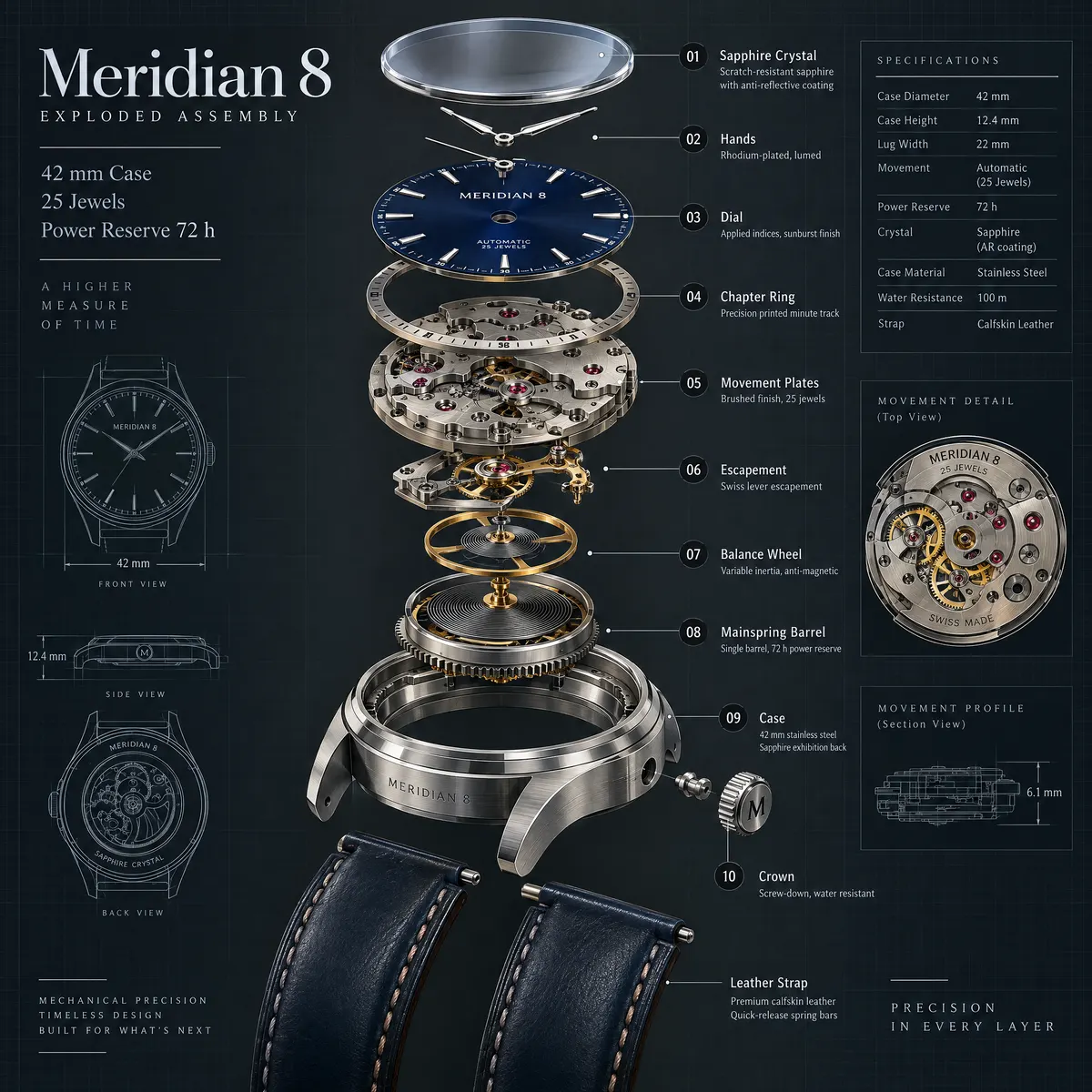
Two 2K samples: an exploded watch assembly with detailed callouts, and a multi-storey cafe cutaway built from a reference image. Both use gpt-image-2.5-sunburst, 2048x2048 and high.
 A · Meridian 8 exploded assembly
2048x2048 · high · Curated |
 B · Night cafe cutaway
2048x2048 · high · Curated adaptation |
A · No. 113 · Prompt
Create a premium technical exploded-view illustration of a fictional mechanical wristwatch called the Meridian 8, centered on a dark slate background with fine blueprint grid accents. Show the watch components separated vertically with precise spacing: sapphire crystal, dial, hands, chapter ring, movement plates, escapement, balance wheel, mainspring barrel, case, crown, and leather strap sections. Use realistic brushed steel, brass, ruby jewel accents, and deep navy dial details. Add crisp callouts and labels with the in-image text "Meridian 8", "Exploded Assembly", "42 mm Case", "25 Jewels", and "Power Reserve 72 h". Include numbered callouts "01" through "10" with short labels like "Balance Wheel", "Mainspring Barrel", and "Sapphire Crystal". The result should be highly detailed, technically believable, sharply rendered, and suitable for an industrial design plate with clean hierarchy, exact labeling, and refined material realism.
B uses the reference from No. 54, keeping the overall street layout while reworking the interiors, floors and lighting. Reference attribution: EvoLinkAI · Source.

B · No. 54 · Edit prompt
Use the reference image as the layout anchor for a richly detailed isometric two-block cafe district at blue hour. Keep the street footprint, corner cafe, neighboring bookstore, bakery and fountain plaza recognizable. Transform it into a three-storey architectural cutaway diorama with coherent 30-degree isometric geometry.

Open the front-facing walls to reveal the cafe espresso bar and upstairs jazz lounge; bookshelves, reading nooks and a spiral staircase in the bookstore; pastry cases and a working oven in the bakery. Add a rooftop glass greenhouse, tiny terraces, copper plumbing, tiled stairs, balconies, hanging plants and warm lights visible through rain-speckled windows. At street level show wet cobbles, bicycles, the coffee cart, varied miniature pedestrians and reflections around the fountain. Every floor, doorway and staircase should connect plausibly.

Use warm amber interiors against deep teal evening shadows, tactile brick, glazed tiles, glass and brushed brass. Preserve crisp detail throughout the scene, with a clean dark navy background and room around the floating diorama. Give the scene depth through cutaway rooms and layered architecture. Use restrained, readable storefront lettering: "NIGHT OWL CAFE", "OPEN BOOKS", and "DAWN BAKERY". Keep the composition square and visually balanced.
See the sample record for settings, inputs and review notes.
🖼️ From reference image to result
Thanks to @LunarXuan for Get Prompt from Image. A vision-capable agent extracts a prompt from a reference image, then passes it to gpt-image or another generator. The contributor-provided reference and its generated result are shown below.
 Reference image · Contributor-provided
|
 Generated result · ImageGen output
|
Attach an image and invoke the skill with a slash command, $get-prompt-from-image, or plain language:
/get-prompt-from-image
Extract a reusable English positive prompt and a targeted negative prompt from this image, then recreate it with gpt-image.
📝 Extracted prompt used for the generated result
Positive Prompt
A highly polished semi-realistic Japanese narrative illustration rendered in a painterly digital style, using varied brush widths, a combination of hard edges and soft transitions, restrained contour lines, and controlled surface texture. The image should feel like a cold cinematic game-concept artwork. Use a wide 16:9 composition with strong depth in a snowy urban alley, where the snow-covered road narrows toward a distant vanishing point near the center. Place a large fluffy dark blue-gray wolfdog in the left foreground, shown in side profile facing right with its head raised, interacting with a hooded young woman kneeling near the center-right. She crouches in the snow facing left, gently touching the wolfdog’s muzzle or forehead with one gloved hand while the other rests near her knee for balance, creating a restrained and intimate gesture. She wears an oversized pale-gray winter hooded jacket with pointed ear-like details on top, dark gray panels, pockets, straps, and small muted red-orange accents, over black clothing, fitted black pants, and heavy dark boots. Short black or deep-brown hair falls from beneath the hood; her face is partly shadowed as she looks down at the wolfdog with a quiet, tired, yet gentle expression. Render the wolfdog’s fur with layered directional brushstrokes, making the back, neck, and tail thick and voluminous, with cool blue-gray shadows, pale highlights, and a subtle rim light along the silhouette. On the left, include metal fencing, utility boxes, and dense dark shrubs; in the distance, show tall urban buildings, street lamps, utility poles, and a blue-gray sky. On the right, include dark building facades, windows, snow-covered roof edges, evergreen branches, and foreground cardboard boxes and industrial clutter. Any environmental labels should remain blurred graphic marks with no readable text. Let the main light enter from the distant upper-left side of the alley, combining cold blue ambient shadows with warm golden reflections in the distance. Add subtle rim light to the snow, the woman, and the wolfdog, with medium-high contrast and warm orange clothing details acting as focal accents. Snow, slush, and shallow puddles in the foreground should show damp reflections. Use atmospheric perspective to soften distant buildings while keeping the woman and wolfdog clear. Establish depth through foreground, middle ground, background, occlusion, and perspective lines rather than strong blur. The mood is loneliness, trust, and a brief moment of tenderness in a frozen city. Preserve rough painterly strokes, cool-warm contrast, cinematic composition, and refined post-processing. Clearly remain a 2D semi-realistic painterly illustration, not photography, pure flat vector art, or 3D rendering.
Negative Prompt
photorealistic, 3D render, flat vector style, pure cel shading, watercolor bleed, oil painting impasto, chibi proportions, deformed anatomy, malformed hands, extra limbs, oversized wolf, sunny summer weather, cluttered composition, readable text, watermark
🚀 Quick start
| Task | Use |
|---|---|
| Generate or edit an image | gpt-image |
| Extract a prompt from a reference | get-prompt-from-image |
| Work in a terminal | CLI examples below, with the selected --model |
🎛️ Choose a model
| Model | Best starting point |
|---|---|
gpt-image-2.5-flare |
Fast, high-quality everyday generation |
gpt-image-2.5-sunburst |
Precise edits and reference-image workflows |
gpt-image-2 |
Retain the model used by existing workflows |
The Skill offers this menu when the model is missing or ambiguous (for example, “GPT 2.5”), then confirms the choice before generating. An exact supported model choice proceeds directly. It always passes an explicit --model; the standalone CLI still defaults to gpt-image-2. Changing models or adding outputs requires the user's approval.
Both 2.5 models add --quality xhigh / max and support transparent PNG/WebP output. Start with low drafts; higher quality can increase latency and cost. For example, after choosing Flare:
gpt-image --model gpt-image-2.5-flare \
  -p "An original flat leaf icon, centered with generous padding, transparent background" \
  --quality medium --background transparent --format png -f leaf.png
See model compatibility and verification notes and GPT Image 2.5 prompt templates. Local output validation for these templates is pending. Existing gallery images keep their original model and source credits.
After install, every gallery entry below can be copy-pasted as gpt-image --model <CHOSEN_MODEL> -p "…" or requested from any skill-capable agent runtime in natural language, e.g. "generate the Boston Spring poster from the skill gallery".
Text → image
gpt-image --model gpt-image-2.5-flare -p "a photorealistic convenience store at 10pm" --size 1k --quality high -f store.pngUnder the hood: POST /v1/images/generations with the explicitly selected model.
Text + reference image → image (edit)
# Single-reference edit / restyle
gpt-image --model gpt-image-2.5-sunburst -p "Make it a winter evening with heavy snowfall" \
  -i chess.png --quality high -f chess-winter.png

# Multi-reference edit: the edits endpoint accepts multiple input images
gpt-image --model gpt-image-2.5-sunburst -p "Place the dog from image 2 next to the woman in image 1. Match the same lighting, composition, and background. Do not change anything else." \
  -i woman.png -i dog.png --size portrait --quality medium -f woman-with-dog.png

# Mask-based inpaint: opaque = keep, transparent = regenerate
gpt-image --model gpt-image-2.5-sunburst -p "replace sky with aurora" \
  -i photo.jpg -m sky_mask.png -f aurora.png
Under the hood: POST /v1/images/edits (multipart form). GPT Image 2 and both 2.5 models use this endpoint, with multiple -i inputs and an optional -m mask. Read results from data[].b64_json and omit response_format. See model compatibility.
📥 Install
Choose either skill or install both: gpt-image generates and edits images, while get-prompt-from-image extracts prompts from reference images.
Check for an existing skill or CLI before installing. Preserve existing skill folders and API-key files. Use your runtime's skill list/status command when available, and ask before installing into a global or shared directory.
command -v gpt-image || true
command -v uv >/dev/null && uv tool list | grep -E '^gpt-image-cli([[:space:]]|$)' || true
test -n "${OPENAI_API_KEY:-}" && echo "OPENAI_API_KEY is already set (value hidden)"
Claude Code
/plugin marketplace add wuyoscar/gpt_image_2_skill
/plugin install gpt-image@wuyoscar-skills
Codex
Codex ships with built-in skill helpers such as $skill-installer and $skill-creator.
Open Codex and invoke the built-in installer with the GitHub skill-folder URL for each skill you want:
# gpt-image
$skill-installer
Install this skill from GitHub:
https://github.com/wuyoscar/gpt_image_2_skill/tree/main/skills/gpt-image

# get-prompt-from-image
$skill-installer
Install this skill from GitHub:
https://github.com/wuyoscar/gpt_image_2_skill/tree/main/skills/get-prompt-from-image
The installer downloads each GitHub folder and places it under your Codex skills directory, usually:
~/.codex/skills/gpt-image
~/.codex/skills/get-prompt-from-image
Restart Codex after installation so the new skills are loaded.
If you prefer to install both manually, copy their skill folders into Codex's skills directory:
git clone https://github.com/wuyoscar/gpt_image_2_skill.git
cd gpt_image_2_skill

mkdir -p "${CODEX_HOME:-$HOME/.codex}/skills"
for skill in gpt-image get-prompt-from-image; do
  test -e "${CODEX_HOME:-$HOME/.codex}/skills/$skill" && echo "$skill already exists; stop before overwriting" && exit 1
  cp -R "skills/$skill" "${CODEX_HOME:-$HOME/.codex}/skills/"
done
AgentSkills / npx skills
For runtimes supported by the cross-agent skills installer, select either skill or install both together from GitHub:
# Change --agent to claude-code, codex, opencode, openclaw, or another supported runtime.
npx --yes skills@latest add wuyoscar/gpt_image_2_skill \
  --skill gpt-image \
  --skill get-prompt-from-image \
  --agent codex --copy
These examples intentionally avoid --global. Add --global only when you explicitly want this skill installed into that runtime's global/shared skills directory.
Other runtimes can use the manual agent-skill installation below.
Manual agent-skill install
Set AGENT_SKILLS_DIR to the skills directory used by your agent runtime, then symlink one or both skill folders into it.
git clone https://github.com/wuyoscar/gpt_image_2_skill.git
cd gpt_image_2_skill

# Choose the skill directory for your runtime.
# Examples:
#   Codex:      ~/.codex/skills
#   Claude Code / OpenClaw / Hermes Agent / other runtimes: use that runtime's documented skills directory.
export AGENT_SKILLS_DIR="/path/to/your/agent/skills"

mkdir -p "$AGENT_SKILLS_DIR"
for skill in gpt-image get-prompt-from-image; do
  test -e "$AGENT_SKILLS_DIR/$skill" && echo "$skill already exists; stop before overwriting" && exit 1
  ln -s "$PWD/skills/$skill" "$AGENT_SKILLS_DIR/$skill"
done
CLI
uvx --from git+https://github.com/wuyoscar/gpt_image_2_skill gpt-image --model gpt-image-2.5-flare -p "a cat astronaut"

# or install to PATH if not already installed
command -v gpt-image >/dev/null || uv tool install git+https://github.com/wuyoscar/gpt_image_2_skill
gpt-image --model gpt-image-2.5-flare -p "a cat astronaut"
How to install GPT Image 2 Skill & Gallery
1.Claude Code: add the marketplace
/plugin marketplace add wuyoscar/gpt_image_2_skill2.Claude Code: install
/plugin install gpt-image@wuyoscar-skills3.Codex via the skills CLI
npx --yes skills@latest add wuyoscar/gpt_image_2_skill --skill gpt-image --skill get-prompt-from-image --agent codex --copy4.Install the CLI
uv tool install git+https://github.com/wuyoscar/gpt_image_2_skill
Licence and attribution
GPT Image 2 Skill & Gallery is created and maintained by wuyoscar and published at github.com/wuyoscar/GPT-Image2-Skill under the MIT licence. The summary, suggested prompts and “About this skill” text are written by PicGens; the README section is reproduced under the project’s licence. The preview is an example image from the repository, reproduced under its licence. PicGens is not affiliated with the author.
Related skills
All skills →Garden Skills: GPT Image 2
Get GPT Image 2 images or structured prompts from ~80 templates, whatever tools your agent has.
 ConardLiGitHub stars: 13k
GPT Image 2 E-commerce Images
Get marketplace-ready product images — hero, lifestyle, A+ modules — from your product photos.
 buluslanGitHub stars: 394
Canvas Design
Get an original poster or art print drawn in code, plus the design philosophy behind it.
 anthropicsGitHub stars: 179k
Theme Factory
Get every deck, doc and page in a project wearing the same palette and font pairing.
anthropicsGitHub stars: 179k
Looking for prompts instead of a skill?
Browse real gpt image 2 prompt templates with the images they made, or give your agent the free PicGens template skill.